
How do I run a report on all patients with a specific tag in Elation and see who hasn't had a visit in the last year?
You run it in Elation's Patient List Report. Go to Reports in the blue navigation bar, click Patient List, add the Patient Tags filter for your tag, add the Last Seen (Last Signed Visit Note) filter set to before the date one year ago, and click Generate List. The results show every tagged patient whose most recent signed visit note is older than a year, with their last and next appointment on the page, and Download CSV gives you the same list as an Excel-compatible spreadsheet for outreach. Elation measures "last seen" by signed visit notes, so sign any open notes first and run the tag alone once to catch patients who have never had a visit note at all. Tabflows does not replace this report, it helps with what comes next, turning each patient on the list into a tracked follow-up so nobody on the tag slips through.
This question comes up most in direct primary care practices that sell to employers. Each employer's members carry a tag, the employer renews once a year, and a member who has not been in all year is someone who may not know how to use the membership yet. Finding those members early gives your team months to reach out, book a visit and show the employer real use before the renewal conversation. The same report works for any tag, whether it marks an employer group, a care program or a membership tier.
Step by step in Elation's Patient List Report
Elation's help center describes the Patient List Report as a way to find patients who match specific criteria based on structured data in their charts, then export the list as a spreadsheet. Here is the exact path for a tag plus no visit in the last year.
- Open the report. Click the Reports button in the blue navigation bar, then click Patient List.
- Choose the provider scope. The Provider filter lets you search one provider's patients or the whole practice. Elation counts a patient as belonging to a provider when that provider is listed as Provider assigned in practice in the patient's demographics. For a practice-wide recall, leave it on the whole practice.
- Add the tag. Under Clinical Data, use the Patient Tags filter and choose the tag you want, for example the employer's name. The filter can search for patients with or without a tag.
- Add the time window. Under General filters, use Last Seen (Last Signed Visit Note) and set it to before the date one year ago. Elation's own flu vaccine example uses Last Seen set to Before a date, so this is the documented pattern.
- Narrow to active patients. Under Demographics, the Patient Status filter lets you search by chart status. Setting it to Active keeps inactive or deceased charts off a recall list.
- Generate the list. Click Generate List. Elation shows the criteria you applied, the number of matching patients and a summary row for each one.
- Export it. Click Download, then Download CSV, to save an Excel-compatible file you can sort, filter and share with whoever is making the calls.
What the report shows you
Each patient on the results page appears with name, HCC score, date of birth and age, gender, preferred contact method, contact details for that method, Last Appointment (last signed visit note) and Next Appointment. You can sort by name, HCC score, date of birth, gender or preferred contact method, and clicking a name opens the chart.
The Next Appointment column is the one to look at first. A tagged patient who has not been seen in a year but already has a visit booked next month doesn't need a call, so you can cross them off before the outreach starts.
The CSV export carries much more. Elation's help center lists first, middle and last name, date of birth, gender, SSN, address, phone numbers, email, preferred pharmacies, preferred contact method, provider assigned in practice, primary and secondary insurance, race, ethnicity and language, demographic notes, last appointment, next appointment, Passport status, Passport invitation eligibility and HCC score. That is everything a front desk needs to call, text or mail the patient, and it is also a file full of protected health information, so keep it in a secure location, share it only with the people making the calls, and delete it when the outreach is finished.
Three catches to know before you trust the list
"Last seen" means last signed visit note
The filter is named Last Seen (Last Signed Visit Note) for a reason. A visit with an unsigned note does not count, and neither does contact that never produced a visit note, such as a message thread, a phone call logged elsewhere or a visit documented in a different system. In a membership practice where a lot of care happens by text, a member can feel well looked after and still show up on this list. Sign outstanding notes first, and treat the list as "no signed visit note in a year" rather than "no contact in a year."
Patients who have never had a visit
The help center doesn't say whether a Before date also returns patients with no signed visit note at all. Run the report once with only the tag filter and compare the count with your filtered list. If new members who joined but never came in are missing from the filtered list, the full tag list with an empty Last Appointment column will show them, and those are often the members most worth a welcome call.
One tag, spelled one way
The report is only as good as the tags. Elation's Patient Tags settings let you add, edit, merge and remove tags, and merging or renaming updates every chart that carries the tag. If "Acme" and "Acme Corp" both exist, merge them before you run the report, and add the tag during onboarding so new members don't fall outside it.
Other ways to get the same answer
The Patient List Report is the direct route and costs nothing extra. Elation's help center says you cannot add your own Quick Views or your own filters, and conditional logic is limited to the Clinical Data section, so the report suits a list you run monthly or quarterly rather than a live dashboard. A few other options exist when that becomes limiting.
- Patient List Report. What it uses: Tags and last signed note. Effort: Run and export. Best for: Most practices.
- Elation Analyst. What it uses: Hosted Database, incl. tags. Effort: Ask a question. Best for: Hosted Database practices with access.
- Analytics partner. What it uses: Elation data plus claims. Effort: Dashboards. Best for: Employer cost and utilization reports.
- Tabflows. What it uses: Not a report tool. Effort: Tracked follow-up. Best for: The outreach after the list.
Elation describes Elation Analyst as an AI-powered chat app that answers natural-language questions against your Hosted Database, with Patient Tags and Appointments among the data it is tuned for. Elation labels it a beta for a select number of practices on the Hosted Database, so ask Elation about access before planning around it. Analytics partners that pull Elation data into employer dashboards, such as Health Compiler, are covered in our guide to reporting encounters per employer in Elation.
From the list to a booked visit
A recall list only helps if someone works it. A simple rhythm that suits a small team looks like this.
- Run the report on the same day each month for each tag you care about, so nobody has to remember.
- Remove anyone with a Next Appointment already booked.
- Reach out by each patient's preferred contact method, which the report already shows, and offer a specific reason to come in, such as an annual visit or a check on something from their last note.
- Record the outcome in the chart or your task list, so next month's list doesn't send the same patient a second, identical message.
- For employer groups, keep the count of members reached and members seen. Aggregate, de-identified counts like these are the kind of usage numbers employers ask for at renewal, without sharing who came in or why.
The hard part is rarely the report. It is that the list lives in a spreadsheet, the messages go out from Spruce or another messaging tool, the bookings land in Elation's calendar and the membership sits in Hint, which are tools that were never built to talk to each other. A list of forty names can quietly turn into twelve calls and a forgotten tab.
Where Tabflows fits
Tabflows is a dedicated tech team and smart admin infrastructure for DPC, concierge and private clinics. It works across the tools you already use, like Elation, Hint and Spruce, and turns the work between them into tracked tasks and automations. It is not an EHR and not an analytics platform, and it is not designed to bulk export or mine your Elation data, so the report above still comes from Elation.
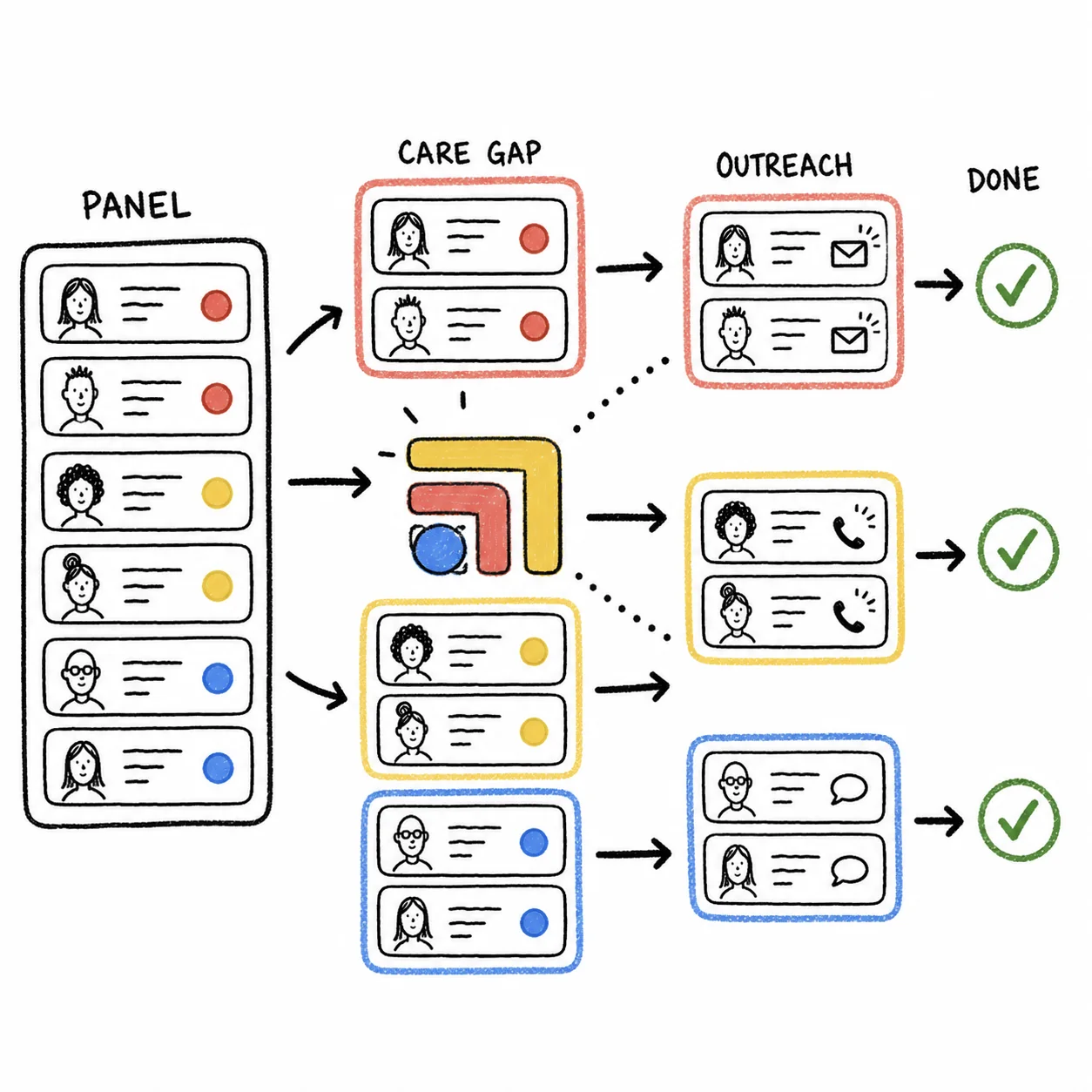
Where Tabflows helps is after the list exists. The tech team can set each patient on it up as a follow-up task with an owner and a due date, so outreach is visible and nothing depends on one person's spreadsheet. For clinics that want more, Tabflows builds workflows on request such as care gap tracking, annual visit reminders that find members due for their annual visit and send a booking link, and an overdue patient ledger that tracks patients due for a callback or follow-up. For employer accounts, our guide to selling direct primary care to employers covers what employers usually want to see at renewal.
A good next step
Run the Patient List Report today with your tag and a Last Seen date one year back, then run it again with the tag alone and compare the two counts. That tells you how many tagged members have gone quiet and how many never came in at all. If you'd like help turning that list into booked visits every month, tell us how your clinic runs and we'll point you to the setup that fits.
Sources: help.elationhealth.com/articles/find-patients-with-elations-patient-list, help.elationhealth.com/articles/adding-patient-tags and help.elationhealth.com/articles/Elation-Analyst.
FAQs
Where is the Patient List Report in Elation?
Click the Reports button in the blue navigation bar, then click Patient List. Elation's help center says the report finds patients who match criteria based on structured data in their charts, and you can generate a list of your whole panel by leaving every filter blank and clicking Generate List.
How does Elation decide when a patient was last seen?
The Last Seen filter is labeled Last Signed Visit Note, so it looks at the date of the patient's most recent signed visit note. A visit whose note is still unsigned, or contact that never produced a visit note, such as a message thread or a phone call, does not count as a visit for this filter. Sign outstanding notes before you run a recall list.
Can I export the list of tagged patients to a spreadsheet?
Yes. Click Download, then Download CSV, to save an Excel-compatible file. Elation's help center lists the columns, including name, date of birth, phone numbers, email, preferred contact method, provider assigned in practice, insurance, last appointment, next appointment and Passport status. The file also includes SSN and full address, so store it like any other protected health information and delete it when the outreach is done.
Can I save the tag and last-visit search as a custom Quick View?
No. Elation's help center says you cannot add your own Quick Views or your own filters, and conditional logic is limited to what the Clinical Data section offers. You re-enter the Patient Tags and Last Seen filters each time, which takes about a minute once you know where they are.
Can an AI tool answer this question in Elation instead?
Elation describes Elation Analyst as an AI-powered chat app that answers natural-language questions against your Elation Hosted Database, and it lists Patient Tags and Appointments among the data it is tuned for. Elation labels it a beta available to a select number of practices on the Hosted Database, so ask Elation whether your practice has access. For most practices the Patient List Report answers this question without it.
Does Tabflows run this report for me?
Tabflows is not an EHR or an analytics platform and is not designed to bulk export Elation data, so the report itself comes from Elation. A dedicated tech team helps with what happens after the list exists, such as turning each overdue patient into a tracked outreach task with an owner and a due date, and can build care gap and annual visit reminder workflows for your clinic on request.