
Sign up your clinic
On this page
Create your account
You will need a work email, the correct clinic name, Google Chrome, and a short list of the systems your clinic uses most.
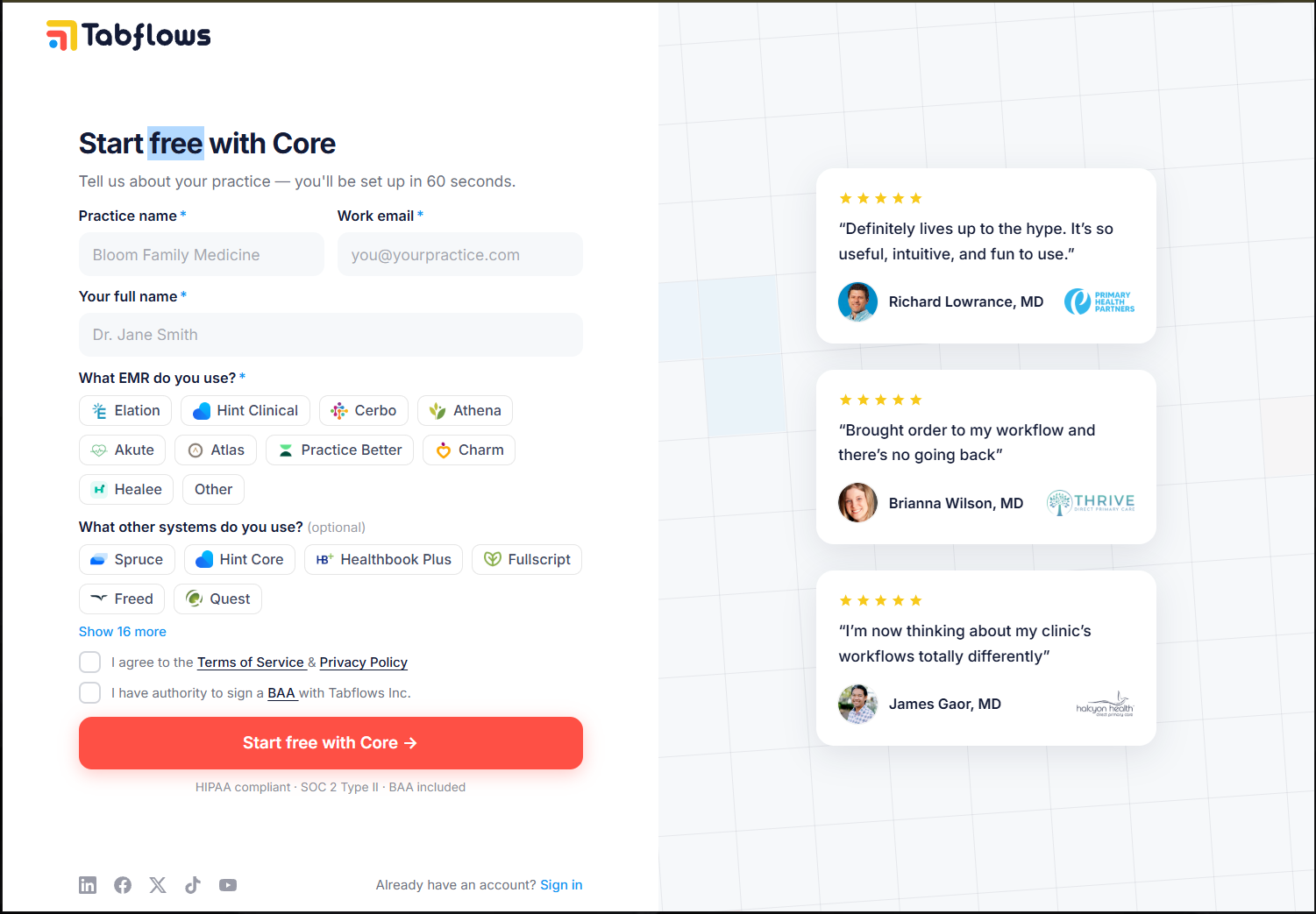
- Go to app.tabflows.com/sign-up
- Enter your practice name, work email, and your full name.
- Select your EHR from the list. If your system isn't listed, select Other and enter its name.
- Select any additional systems your clinic uses. (Optional)
- Review and accept the Terms of Service and Privacy Policy.
- Confirm that you have the authority to sign a Business Associate Agreement (BAA) on behalf of your clinic.
- Click Start free with Core.
Verify your email
Tabflows sends an activation email to the address you provided.
- Open the verification email.
- Click the verification link. On Set up your password, enter and confirm a password (at least 8 characters, with a number, an uppercase and a lowercase letter), then click Activate account.
Install the Tabflows Chrome extension
Once your account is verified, add the extension to Chrome:
- Go to tabflows.com/extension, which opens the Chrome Web Store
- On the Chrome Web Store page, click Add to Chrome and confirm
- Open a supported system you normally work in, such as Elation, Hint or Spruce
- The Tabflows sidebar appears on the right side of your screen. Sign in with your Tabflows credentials.
Tabflows then appears alongside the systems you already use. For more on the extension, see Install the Tabflows Chrome extension
Connect your first workflow
- Add one or two supported systems. Manage systems in your sidebar
- Open a familiar patient and link them across those systems. How do I link a patient across your systems
Bring in your team
Invite teammates from Settings at the bottom of the left menu, on the Team page under Organization, or ask Tabflows to add them: Invite a teammate and manage pending invites
To pick each person's access, see Choose or change a teammate's role
Good to know
Before you start
Have these details ready:
- Your clinic or practice name.
- Your work email address.
- The primary EHR your clinic uses.
- Any additional systems you want to connect first.
- Authority to accept the current Terms, Privacy Policy, and clinic BAA statement shown during signup.
How fast is setup?
Most practices are fully set up the same day they sign up:
- Account created: ~ 45 seconds
- Extension installed: ~60 seconds
- Systems added to sidebar: ~2 minutes
- First patient linked: first time you open a patient
Want a guided walkthrough first?
We'll walk through your clinic's setup and answer any questions along the way.
If something's off
Need help setting this up? 💬
Reach out to our Support team however works best for you:
- Start a chat using the Support button at the bottom right of the sidebar (side tabs)
- Email us at team@tabflows.com or
Sidekick will be waiting the moment you sign in.